Device-first app guidance
IPTV Apps Guide
Smart TV, Fire TV, Android and IBO Player
Apps are required to use IPTV access on most devices.
The right app depends on your screen type, operating system,
and setup preference.
This guide covers Smart TV, Fire TV Stick, Android TV,
iPhone, iPad, PC, and Mac use cases with clear compatibility notes.
Important note
IPTV apps are media/player applications.
Some apps may require separate activation or license handling.
App activation is different from IPTV subscription/access plans.
Third-party app availability may vary by device,
region, and app store.
App comparison
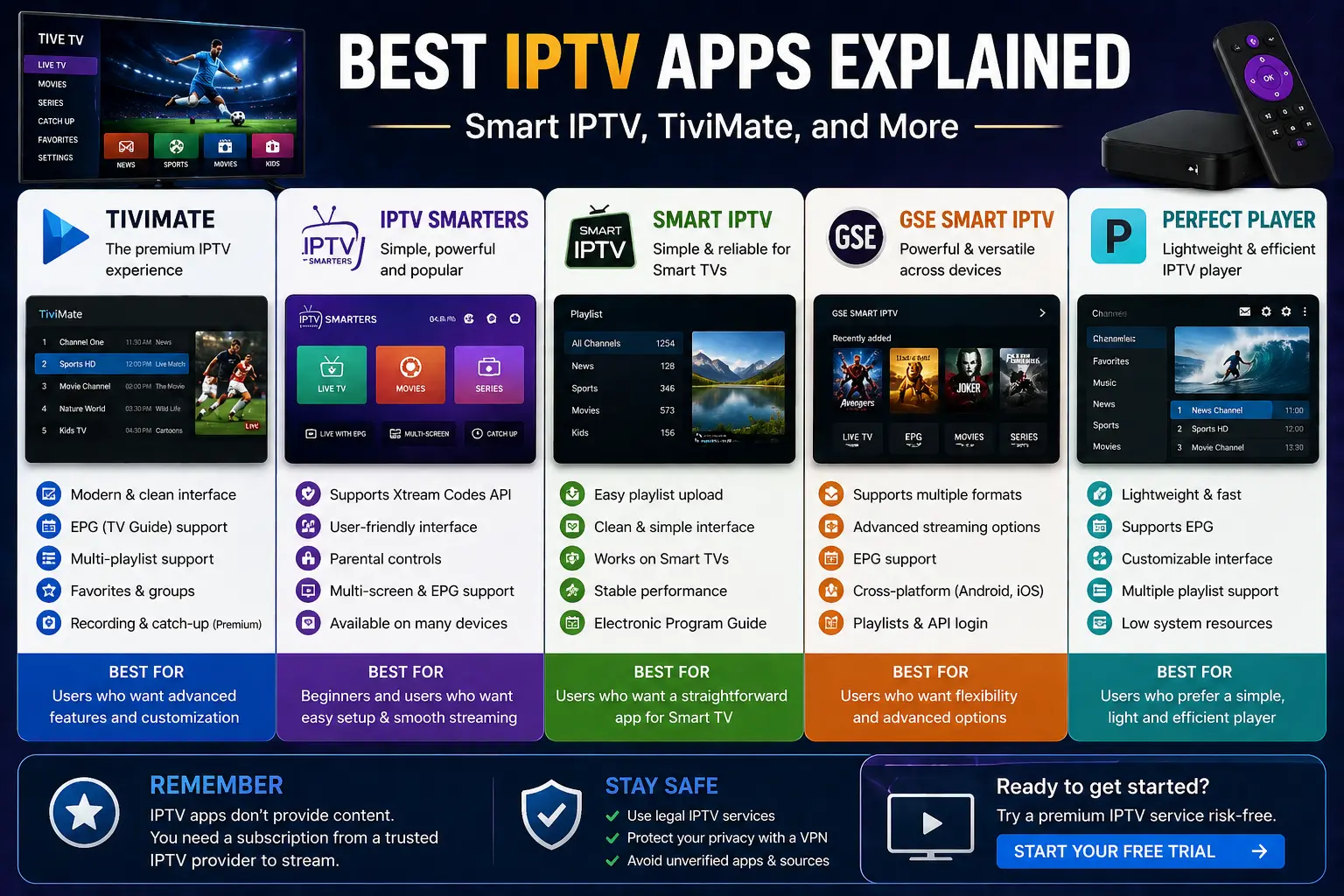
IPTV Smarters Pro
Best for:
users who want a familiar multi-device interface.
Compatible devices:
Android TV, Fire TV Stick, mobile, selected desktop setups.
What to check:
version support and login format.
Setup notes:
confirm M3U or Xtream format before login.
Contact support
IBO Player
Best for:
selected Smart TV users.
Compatible devices:
TV platforms where IBO Player is available.
What to check:
activation/license requirements.
Setup notes:
app activation can be separate from subscription access.
Contact support
TiviMate
Best for:
Android TV users who want advanced layout control.
Compatible devices:
Android TV and compatible boxes.
What to check:
app edition and playlist format.
Setup notes:
recommended for users comfortable with settings.
Contact support
OTT Navigator
Best for:
users who want customization options.
Compatible devices:
Android and Android TV ecosystems.
What to check:
device performance and app compatibility.
Setup notes:
configure categories and playback options carefully.
Contact support
VLC / PC player
Best for:
testing or desktop playback basics.
Compatible devices:
Windows PC and Mac.
What to check:
supported stream format and network stability.
Setup notes:
useful for quick checks and troubleshooting.
Contact support
Smart TV app options
Best for:
living-room users with TV-first setup goals.
Compatible devices:
Samsung and LG Smart TV environments.
What to check:
app store availability by model and region.
Setup notes:
verify activation flow and login method before purchase.
Contact support
IPTV PLAYER BY DEVICE
Best IPTV Apps and IPTV Players by Device
The best IPTV app depends on your device, operating system and
preferred login format. Some users need a simple Smart IPTV app,
while others prefer an IPTV player with advanced playlist,
EPG or Xtream login support.
FIRE TV
IPTV for Amazon Fire TV
Fire TV Stick users should choose an IPTV player designed
for television screens and remote-control navigation.
A good Fire TV app should make categories, favorites,
search and playback controls easy to use from the sofa.
Before installation, check whether the app supports
M3U playlists,
Xtream Codes login, or both.
IPTV on Fire TV Stick guide →
ANDROID
IPTV Player Android & Android TV
If you are looking for an IPTV Player Android solution,
choose an app optimized for Android TV, Google TV or mobile devices
with support for your preferred login format.
On phones and tablets, an IPTV player for Android should
also provide touch-friendly navigation and reliable
background playlist management.
Check compatible IPTV devices →
WINDOWS
IPTV Player Windows PC
An IPTV Player Windows setup is useful for testing
playlists, checking login details and troubleshooting playback
before configuring the same access on a television.
Players such as VLC-style applications can handle basic
playlist playback, while dedicated IPTV software may offer
categories, EPG, favorites and more advanced navigation.
Test your IPTV setup →
SMART TV
Smart IPTV App for Samsung and LG TV
Smart TV users should first verify which IPTV apps are
available in the app store for their exact Samsung or LG
television model and region.
Availability can change between TV generations, so check
M3U or Xtream support, app activation requirements and
remote-control usability before choosing a player.
Smart TV compatibility guide →
Which IPTV app is best?
There is no single best IPTV app for every device.
For Fire TV and Android TV, prioritize remote-friendly
navigation and stable playback. For Samsung or LG Smart TV,
prioritize app-store availability and compatibility.
For Windows, playlist testing and desktop controls may be
more important.
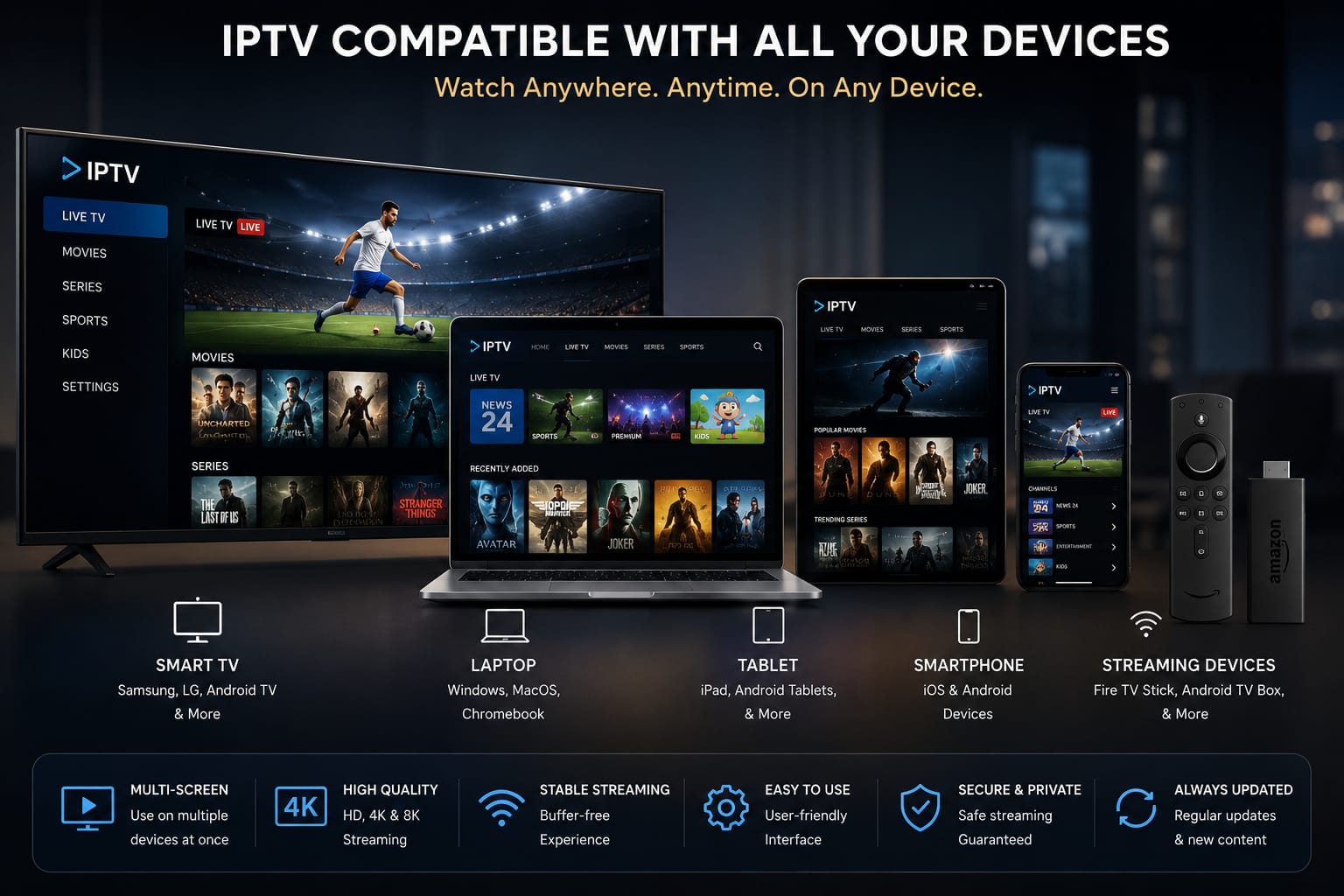
Device compatibility
Samsung Smart TV
LG Smart TV
Android TV
Google TV
Fire TV Stick
Android Box
iPhone / iPad
Apple TV
Windows PC
Mac M3U and Xtream Codes explained
M3U IPTV
M3U is a playlist-style URL or file method
supported by many IPTV players.
It is useful when you want a flexible playlist format that
can be imported into compatible Smart TV, Fire TV, Android TV,
mobile, or desktop apps.
M3U IPTV Playlist Guide →
Xtream Codes IPTV
Xtream Codes uses a server URL,
username, and password in compatible IPTV apps.
Compatible players can use this login format to organize
Live TV, movies, series, categories, and EPG in a more
structured interface.
Xtream Codes IPTV Guide →
Do not share credentials publicly.For setup help, see the
IPTV FAQ
or
Contact support
.
How to choose the right app
Best for simple setup
Choose apps with straightforward login and clear menus.
Best for Android TV
Choose Android TV-optimized apps with stable playback controls.
Best for Smart TV
Choose apps that are available in your TV app store
and support your model.
Best for advanced users
Choose apps with playlist management and customization options.
Best if you need support
Choose apps with clearer onboarding and ask support before setup.
Common problems
App not found
The app may not be available on your device model
or regional store.
Wrong app installed
Some apps have similar names.
Confirm the exact app before setup.
Login error
Check data format, app compatibility,
and account input accuracy.
M3U not loading
Confirm the full URL, connection stability,
and supported app format.
Read the M3U IPTV troubleshooting guide →
Xtream Codes login not working
Check the server URL, username, password,
port information, and player compatibility.
Read the Xtream Codes troubleshooting guide →
Buffering
Review network quality, app settings,
and device performance.
App activation confusion
Remember app activation or license handling can be
separate from IPTV access plans.
Quick app setup flow
-
Choose your device and compatible app.
-
Verify if separate app activation is required.
-
Use the correct
M3U
or
Xtream Codes
login format in the app.
-
Test playback and contact support for tuning.
Availability of apps, categories, and content may vary by device,
app, region, and subscription type. Users are responsible for ensuring
that any content they access complies with applicable laws in their country.
Need help choosing the right app for your device?